
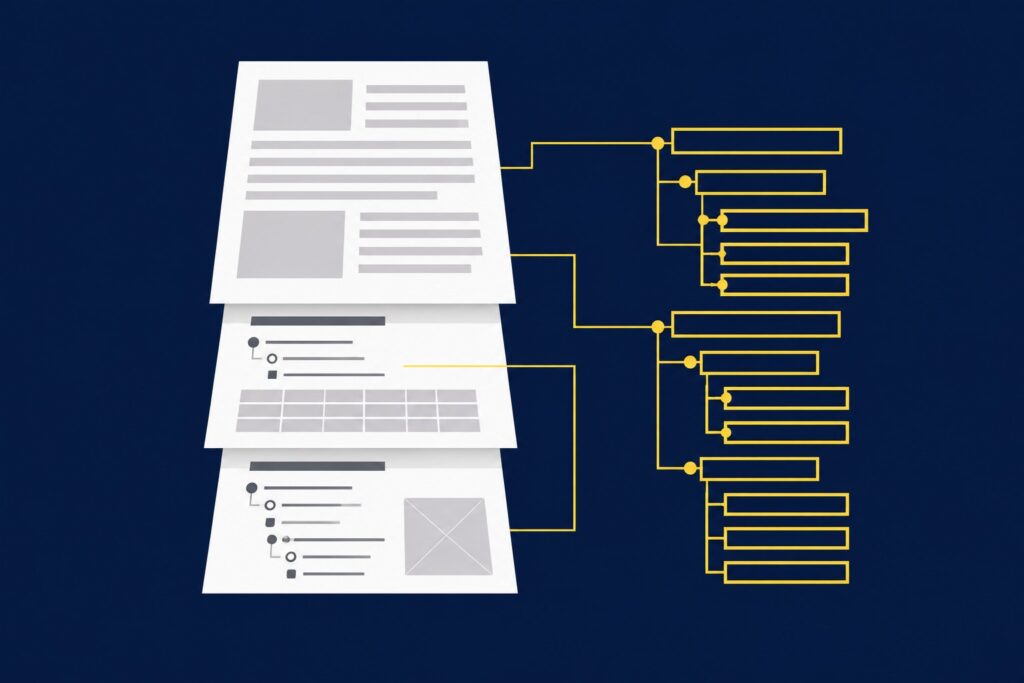
An accessible PDF carries its structure in machine-readable form: tags that identify headings, lists, tables, links, and images so assistive technology can announce them in a sensible order. Most PDFs published on the web carry none of that. This is the checklist for the case where turning the document into a web page is genuinely not an option: a form that gets signed, a print-designed report, a filing that has to keep its pagination.
One caveat up front, because it changes the economics. If you have a real choice, HTML is almost always the better answer, and the last section makes that case honestly. Everything before it assumes the decision is already made.
Why PDFs Are Hard for Assistive Technology
WebAIM describes a PDF as three layers: the visual layer you see, a content layer holding basic text formatting, and a tags layer carrying the structure screen readers actually consume (WebAIM, Defining PDF Accessibility). A file with no tags layer has no headings, no lists, no table relationships, and no defined reading order. It has ink on a page.
W3C’s reading-order technique gives the canonical failure: a two-column layout is obvious to a sighted reader, but an untagged file may be read straight across both columns as one, turning the document into nonsense (W3C, Technique PDF3). So "the text is selectable" is not an accessibility test. Selectable and structured are different things.
Fix It in the Source File First
Remediating a finished PDF is slow; fixing the Word, InDesign, or PowerPoint source is fast, and the structure survives the export. Use real heading styles instead of bold-and-bigger text. Use list tools instead of typed bullets. In Word, tick the Header Row checkbox on tables, which W3C documents as the route to correctly tagged header cells after conversion (W3C, Technique PDF6). Add alt text before export, and export with tagging enabled rather than printing to PDF, which discards structure. Decks follow the same rule, which is one more argument for building them on outlines and placeholder layouts, as in our guide to using PowerPoint effectively.
One budgeting note: of Adobe’s three Acrobat tiers, only Acrobat Pro can view and edit a PDF’s accessibility information (WebAIM).
Tags and Reading Order
Tags give the document structure; reading order sets the sequence in which that structure is presented. W3C lists correct tab and reading order as sufficient for Success Criterion 1.3.2 Meaningful Sequence, and for 2.1.1 Keyboard and 2.4.3 Focus Order where interactive elements are involved (W3C, Technique PDF3).
In Acrobat Pro, autotagging produces a first pass; the Reading Order tool and the Tags panel let you correct it by dragging tags into position (Adobe, Create and verify PDF accessibility). For tab order, set page properties to Use Document Structure, the default W3C notes is usually correct for tagged files. Sidebars, pull quotes, footnotes, and floating graphics are where autotagging fails most often.
Document Title and Language
Set the document /Title in file properties and set the viewer to display the title rather than the filename: W3C documents this as sufficient for Success Criterion 2.4.2 Page Titled when the title is descriptive (W3C, Technique PDF18). Without it, a screen reader announces something like annual-report-final-v7.pdf.
Set the default language with the /Lang entry (technique PDF16) and mark passages in other languages separately (technique PDF19). Language drives pronunciation, and a French quotation read with English phonetics is unintelligible. Acrobat’s checker fixes both title and primary language from its results panel (Adobe).
Headings and Lists
Tag headings as headings, in order, without skipping levels, so a reader can jump through the document by structure instead of reading it linearly (technique PDF9). Use real list tags (technique PDF21). A bullet character with no list tag is a paragraph that starts with a dot.
Alt Text and Decorative Images
Every image carrying meaning needs a text alternative through the Alt entry (technique PDF1). Every image carrying none, rules, background flourishes, decorative photography, should be marked as an artifact so assistive technology skips it (technique PDF4). Both halves matter.
Charts are the hard case. "Bar chart of revenue" tells a screen reader user nothing. Describe the finding in the alt text, or put the underlying numbers in a tagged table nearby.
Tables With Real Header Cells
Tagged tables use a Table element containing table row (TR) elements, each holding header (TH) or data (TD) cells, with RowSpan and ColSpan on merged cells (W3C, Technique PDF6). W3C flags the common defect directly: converted tables often arrive with headers mistagged as TD, fixed by selecting them in the Tags panel and changing the type to Table Header Cell. Acrobat Pro’s Table Editor exists for that repair (technique PDF20). Tables used for layout rather than data should not be tagged as tables at all.
Link Text, Color, and Contrast
Links need both the link annotation and the /Link structure element to be exposed properly (technique PDF11), plus replacement text via the /Alt entry when the visible text is not self-explanatory (technique PDF13). "Click here" and a bare URL fail the same way: pulled into a screen reader’s link list, they say nothing.
Contrast comes straight from WCAG. The DOJ’s fact sheet on its Title II rule uses 4.5:1 as the ratio required for the text in its worked example under WCAG 2.1 Level AA (ADA.gov fact sheet). Equally important, never carry information by color alone: a red asterisk with no text equivalent, a legend distinguished only by hue, or a "fields in red are required" instruction all disappear for a reader who cannot perceive the difference.
Forms and Field Labels
Every field needs a label exposed to assistive technology (technique PDF10) and correct name, role, and value information (technique PDF12). Required fields must be indicated without relying on styling (technique PDF5), validation errors have to be announced when input falls outside the expected format (technique PDF22), and submission needs a real submit button (technique PDF15).
Flat forms, printed-looking boxes with no interactive fields, are not accessible forms; W3C’s technique PDF23 exists because the controls have to be real. Adobe also states its Prepare for accessibility action cannot run on dynamic XFA forms or portfolios, so legacy LiveCycle forms need a separate plan.
Scanned Documents and the OCR Requirement
A scanned document is an image of text. W3C is blunt: such a file "is inherently inaccessible because the content of the document is images, not searchable text," and optical character recognition is the sufficient technique for Success Criteria 1.4.5 Images of Text and 1.4.9 Images of Text (No Exception) (W3C, Technique PDF7).
Bookmarks for Long Documents
For anything past a few pages, generate bookmarks from the heading structure. W3C treats this as an advisory technique for Success Criterion 2.4.5 Multiple Ways, noting that readers with cognitive disabilities may prefer a hierarchical outline to traversing many pages (W3C, Technique PDF2). In Acrobat Pro the command is New Bookmarks From Structure, which only works if the headings were tagged first.
How to Verify an Accessible PDF
Three passes, in this order.
- Acrobat’s accessibility checker: run Prepare for accessibility, then Check for accessibility. Results return as Passed, Failed, Needs Manual Check, or Skipped By User. Adobe’s documentation warns the check “does not distinguish between essential and nonessential content types,” which is a polite way of saying a green report is not a passing grade.
- PAC (PDF Accessibility Checker): a free Windows tool that tests against ISO 14289 (PDF/UA) and WCAG, with a screen-reader preview and a structure view. It automates the machine-testable part of the Matterhorn Protocol, the PDF Association’s breakdown of PDF/UA requirements into checkpoints (pac.pdf-accessibility.org).
- A real screen reader: W3C PDF technique test procedures typically list this option first. Open the file in NVDA, JAWS, or VoiceOver and listen to it. Tab through the form. Nothing else tells you whether the reading order is merely valid or actually sensible.
Budget for the third pass. Automated checkers confirm that structure exists; only a person confirms it makes sense.
PDF/UA and the DOJ Title II Rule, Briefly
PDF/UA is the ISO standard for accessible PDF. ISO 14289-1:2014 (PDF/UA-1) specifies how to use ISO 32000-1 to produce accessible electronic documents, and ISO’s catalog records it as reviewed and confirmed current in 2025 (ISO 14289-1:2014). ISO 14289-2:2024 (PDF/UA-2) extends the approach to PDF 2.0. WCAG says what accessible means for content; PDF/UA says how the file format expresses it.
The DOJ Title II rule applies to state and local governments. Per the ADA.gov fact sheet, the final rule was published in the Federal Register on April 24, 2024 and sets WCAG 2.1 Level AA as the technical standard; the Department defines "web content" to include documents, and its examples discuss PDFs explicitly. On April 20, 2026 the Department published an Interim Final Rule extending compliance dates to April 26, 2027 for entities with a population of 50,000 or more, and to April 26, 2028 for smaller entities and special district governments (ADA.gov). The fact sheet describes an exception for conventional electronic documents already posted before the compliance date, and says it does not apply to documents currently used to apply for, access, or participate in a service.
HTML Is Usually the Better Answer
An accessible PDF is achievable, and for a form that gets signed or a report that has to hold its pagination it is the right call. For most other content it is the expensive call, because the remediation cost recurs on every revision. Change a table in the source, re-export, and you are back in the Tags panel.
A web page carries structure natively. It reflows on a phone, respects the reader’s text size, gets indexed as a page rather than a file, and updates without a remediation pass. That was the core of our case against digital flipbooks, and it applies to the PDF-as-default habit too. Any modern content management system handles structured content well enough that publishing as a page costs almost nothing extra, and editors on current tooling get accessible markup essentially for free, one of the quieter wins in the WordPress 7.0 release.
The policy most teams land on: publish the content as a web page, and offer a tagged, accessible PDF as the download for people who need one.
Frequently Asked Questions
Does a PDF have to be tagged to be accessible?
In practice, yes. WebAIM puts it plainly: there is more to an accessible PDF than tags, but an untagged PDF would not be considered accessible. Tags expose headings, lists, tables, and reading order to assistive technology, and selectable text is not a substitute.
Does passing Acrobat’s accessibility checker mean the file is compliant?
No. Adobe’s documentation notes the check does not distinguish essential from nonessential content, and some items cannot be verified automatically at all, which is why the report includes a “Needs Manual Check” status. Automated tools confirm structure exists; a person with a screen reader confirms it is correct.
What is the difference between WCAG and PDF/UA?
WCAG is the W3C’s content standard for web content generally. PDF/UA (ISO 14289) is the ISO standard for how a PDF file should be constructed. They overlap heavily, and most teams target both: WCAG because regulators cite it, PDF/UA because it is specific to the format. Acrobat and PAC test against both.
Can a scanned PDF be made accessible without the original file?
Yes, but it is work. Run OCR to turn images of text into real text, correct the characters flagged as suspects, then tag the recovered content with headings, lists, tables, and a correct reading order. If the source document survives anywhere, re-exporting from it is faster and better.
Do the DOJ Title II compliance dates apply to private businesses?
The rule described here applies to state and local governments under Title II of the ADA, per the ADA.gov fact sheet. Private businesses fall under a different part of the ADA, and the fact sheet sets no dates for them. This is a description of the rule rather than legal advice; an organization uncertain about its obligations should consult counsel.
Which PDFs should be remediated first?
The ones people use to do something: applications, forms, benefit information, current-year reports. The DOJ fact sheet’s own examples draw a similar line, treating a document still used to apply for a service differently from an archived one. Frequency of use beats file age as a triage signal.
Which tools does the work actually require?
Acrobat Pro for tagging and repair, since it is the only Acrobat tier that can edit accessibility information. PAC for a free second verification pass. A screen reader for the human check: NVDA is free on Windows, and VoiceOver ships with macOS. Most of the work is cheaper in Word or InDesign than in the PDF.
Which success criteria cover color and contrast in a PDF?
Two, and they are separate requirements. Success Criterion 1.4.3 Contrast (Minimum) sets the 4.5 to 1 ratio for normal text and 3 to 1 for large text. Success Criterion 1.4.1 Use of Color requires that color is never the only way information is conveyed, so a red figure in a table needs a symbol, a label or a pattern alongside it. Both apply to a PDF exactly as they apply to a web page, and neither is fixed by tagging.