
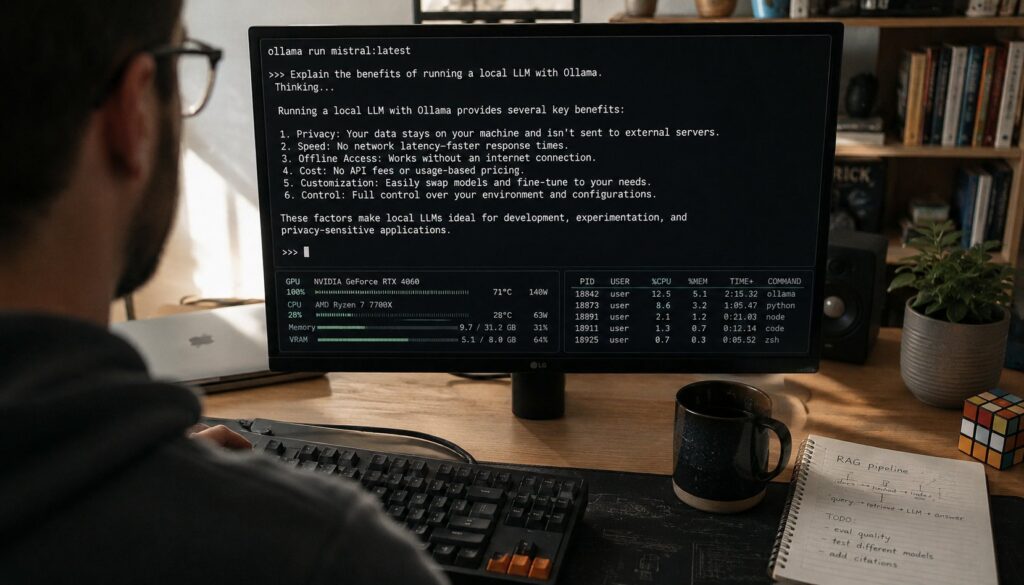
Ollama is the open-source command-line and HTTP-API tool that became the most-adopted local LLM runtime through 2024 and 2026 by abstracting away the substantial complexity of model loading, quantization, and serving into a few simple commands. The defining design choice: a single ollama run llama4 command downloads the appropriate model file, applies sensible quantization defaults, loads the model into memory, and starts an inference session in minutes rather than the hours of manual configuration that running open-weight models locally previously required. Ollama is built on llama.cpp underneath, runs natively on macOS, Linux, and Windows, supports the GGUF model file format that has become the de facto standard for quantized local inference, and curates a model library of the major open-weight families (Llama 4, Mistral, Mixtral, DeepSeek V4, Qwen 3, Microsoft’s Phi-4, Google’s Gemma 3, and many specialized variants). For developers wanting to run LLMs locally for development, evaluation, or personal use, Ollama is the default starting point in 2026; for teams scaling to production serving, Ollama is typically the development runtime that pairs with a different production-oriented serving framework like vLLM.
This post covers what Ollama actually is, how to get started running models, the model library and how Ollama manages it, the HTTP API that makes Ollama practical for application integration, the common usage patterns, the hardware considerations that determine what’s actually possible to run, when to stay on Ollama versus when to graduate to production-oriented alternatives, and where Ollama fits alongside LM Studio, llama.cpp, vLLM, and the other local inference runtime tools. For broader context on the local AI landscape, our Local AI Models pillar covers the broader category, and our OpenClaw pillar covers the agent framework that’s frequently paired with local Ollama inference.
What Ollama actually is
Ollama is a tool that handles the operational complexity of running large language models on customer hardware. The basic value proposition: instead of figuring out which model file to download, what quantization to apply, how to load the model into memory efficiently, how to serve inference requests, and how to manage multiple models on the same machine, you install Ollama and let it handle all of that. The command-line interface is simple enough that running a capable LLM locally goes from "afternoon-long project" to "a few minutes of setup."
The architectural pieces:
The Ollama daemon runs in the background and manages model loading, inference, and the HTTP API. The daemon handles the substantial complexity of managing model files (often multiple gigabytes each), allocating GPU memory, batching inference requests, and serving multiple concurrent users.
The CLI provides commands for downloading models (ollama pull), running them interactively (ollama run), listing installed models (ollama list), removing them (ollama rm), and managing the broader Ollama configuration. Most personal use happens through the CLI.
The HTTP API exposes inference, chat, embeddings, and model management through a REST interface that runs on localhost by default. Applications integrate with Ollama through this API rather than through library bindings, which keeps the integration simple and language-agnostic.
The model library curates the major open-weight model families. When you run ollama run llama4, Ollama knows which file to download from its registry, what default quantization to apply, and what configuration parameters to use. The curation matters because finding and configuring the right open-weight model files independently is genuinely complicated.
llama.cpp underneath. Ollama doesn’t reimplement the inference engine; it builds on llama.cpp, the C++ inference framework that powers many local LLM tools. The choice means Ollama benefits from llama.cpp’s continuous performance improvements and broad hardware support.
Multi-model support. Ollama can hold multiple downloaded models simultaneously and switch between them as needed. This is operationally important because different tasks benefit from different models; switching models manually with raw llama.cpp would be substantially more work.
The combination produces a tool that fits the developer-experience expectations established by package managers like Homebrew or npm: install, run a command, things work. The transformation from "running local LLMs is a serious infrastructure project" to "running local LLMs is one command" is most of why Ollama became the default.
Getting started
Installing and using Ollama in practice is genuinely simple. The basic flow:
Install Ollama. Download from ollama.com for macOS, Windows, or Linux. The installer handles the daemon setup; after installation, Ollama runs in the background ready to accept commands.
Run your first model. Open a terminal and run:
ollama run llama4The command downloads the appropriate Llama 4 model file (the default is the 8-billion-parameter variant at 4-bit quantization, which fits on most modern hardware), loads it into memory, and starts an interactive chat session. You can type prompts and get responses immediately. Type /bye to exit.
Try other models. The same pattern works for any supported model:
ollama run mistral
ollama run phi4
ollama run gemma3
ollama run qwen3
ollama run deepseek-v4
Each command downloads and runs the named model. The model files cache locally; subsequent runs of the same model don’t re-download.
Choose specific model sizes. Append a size tag to choose specific variants:
ollama run llama4:70b      # 70-billion-parameter variant
ollama run llama4:405b     # 405-billion-parameter variant (needs serious hardware)
ollama run llama4:8b-q8    # 8-bit quantization instead of default 4-bit
The tag system gives you fine control over model selection without manual file management.
List and manage installed models.
ollama list                # Show all locally-installed models
ollama rm mistral          # Remove a model to free disk space
ollama pull qwen3          # Download without running
ollama show llama4         # Show model details and configuration
The whole getting-started experience for someone familiar with command-line tools is a 10-minute walkthrough. For users without command-line familiarity, GUI alternatives like LM Studio may be more accessible (covered below), but Ollama’s CLI is approachable enough that most developers can be productive quickly.
The model library
Ollama’s model library is one of the tool’s most operationally valuable features. The library curates which models are available, what quantization variants exist for each, and what configuration parameters make each work well. The current library as of mid-2026 includes:
Llama family. Llama 4 in 8B, 70B, and 405B parameter sizes. Llama 3 still available for compatibility with older deployments. Multiple quantization variants for each size.
Mistral family. Mistral 7B, Mistral Nemo 12B, Mixtral 8x7B, Mixtral 8x22B, Mistral Large 2 123B. The full range from edge-suitable small models to flagship-scale models.
DeepSeek V4. Multiple sizes of the DeepSeek family, including the reasoning-capable variants that have become competitive with frontier closed-weight models.
Qwen 3. Alibaba’s family in sizes from 0.5B to 72B parameters with strong multilingual capability.
Phi-4. Microsoft’s small-model specialist in 14B and Phi-4-mini variants.
Gemma 3. Google’s open-weight family in 2B, 9B, and 27B parameter sizes.
Specialized models. Code-generation specialists (Code Llama, DeepSeek Coder, Qwen Coder), function-calling specialists, multilingual specialists, embedding models, and many others.
Custom models. Users can publish their own fine-tuned variants to the Ollama library for personal use or sharing. The pattern uses Modelfiles (similar to Dockerfiles but for model configuration) to specify base models, parameters, system prompts, and quantization choices.
The library curation matters because finding the right open-weight model independently and configuring it correctly is substantially harder than ollama run model-name. Most users would rather pick from a curated list than navigate Hugging Face Hub trying to find the right GGUF file for their hardware.
The HTTP API
Ollama’s HTTP API is what makes the tool practical for application integration. The daemon runs an HTTP server on localhost by default (port 11434) that exposes:
Generation endpoint (/api/generate) for single-shot text generation. Send a prompt and a model name; receive the generated response.
Chat endpoint (/api/chat) for multi-turn conversation. Send a message history; receive the next assistant turn.
Embedding endpoint (/api/embed) for vector embeddings. Send text; receive the embedding vector. Useful for RAG pipelines and semantic search applications.
Model management endpoints for pulling, creating, listing, copying, and deleting models programmatically.
The API works with any HTTP client, which keeps integration language-agnostic. Code in Python, TypeScript, Rust, Go, Ruby, Swift, or any other language can integrate with Ollama by making HTTP requests.
For higher-level integration, Ollama is supported by the major LLM SDKs:
Vercel AI SDK has an Ollama provider that lets you call Ollama models through the same generateText() and streamText() interface used for OpenAI, Anthropic, Google, and other providers. As covered in our Vercel AI SDK Walkthrough, swapping between Ollama and a cloud provider becomes a configuration change rather than a code rewrite.
LangChain has comprehensive Ollama integration through langchain-ollama for Python and @langchain/ollama for TypeScript. The LangGraph framework similarly supports Ollama-backed agents.
LiteLLM abstracts across providers including Ollama, which is useful for teams that want a consistent interface regardless of which model is being called.
Open WebUI provides a ChatGPT-style browser interface that connects to Ollama for the inference backend. Useful for non-technical users who want a familiar chat interface running entirely on local infrastructure.
The integration ecosystem means Ollama isn’t a closed system; teams can use Ollama models the same way they’d use cloud APIs, with the only difference being the provider configuration.
Common usage patterns
The patterns Ollama is most commonly used for:
Personal AI assistants. Individual developers running Ollama on their laptop or desktop, using a local model as their daily-driver AI assistant for code questions, writing, research, and general tasks. The pattern is privacy-preserving (data stays local) and free at the margin (no per-request costs).
Development environments. Teams using Ollama during application development to integrate against a local LLM without the cost or latency overhead of cloud APIs. Common pattern: develop and test against Ollama, switch to a cloud provider for production via Vercel AI SDK or similar abstraction.
Privacy-sensitive applications. Workloads where data can’t leave customer infrastructure use Ollama to keep inference entirely on customer-controlled hardware. Common in regulated industries, internal enterprise tools, and any context where vendor data access is a concern.
Air-gapped environments. Government, defense, and certain industrial contexts where network connectivity is restricted use Ollama for the only practical path to running modern AI.
Embeddings for RAG pipelines. Teams using Ollama for the embedding step of retrieval-augmented generation pipelines, often paired with vector databases like pgvector on Supabase or specialized vector stores. The embedding workload runs locally; the broader pipeline may include cloud or local components depending on the data sensitivity.
Agent frameworks with local models. OpenClaw, AutoGen, CrewAI, LangGraph, and other agent frameworks frequently use Ollama for the underlying LLM when the agent needs to operate without cloud dependencies. The pattern is particularly attractive after the Fable 5 situation surfaced cloud-API availability risk.
Code completion and developer tools. Coding assistants, autocomplete tools, and IDE integrations using Ollama for the underlying model. Latency benefits and privacy benefits combine for code-heavy use cases.
Research and experimentation. Researchers and ML engineers using Ollama to evaluate models, test prompts, and explore capabilities without consuming cloud API budget. The fast iteration loop matters for exploration.
Hardware considerations
What you can actually run on Ollama depends on your hardware. The practical guidance:
16GB RAM laptop, integrated GPU or basic discrete GPU. Small models (8B parameters or smaller) run comfortably. Phi-4, Gemma 3 9B, Llama 4 8B, Mistral 7B all work. Latency is interactive. Most personal use cases fit here.
32GB RAM with mid-range GPU (RTX 4060 Ti 16GB, RTX 4070, similar). Medium models (up to 14B parameters) run well in VRAM. Larger models can run but with offloading to system RAM, which produces meaningful latency. Good for personal development with capable models.
64GB+ Apple Silicon (M2 Max, M3 Max, M3 Ultra, M4 family). The unified memory architecture handles 70B-parameter models cleanly at 4-bit quantization. Performance is competitive with dedicated GPUs for inference workloads. Particularly attractive for developers who want strong local AI capability without building a custom workstation.
Workstation with RTX 5090 (32GB VRAM) or professional cards (A5000, A6000). 70B models run without offloading. Strong performance, excellent latency. The sweet spot for serious local AI work without going to server-class hardware.
Server-class hardware (multiple H100, B100, or A100). Production-scale local inference territory. Large models (405B parameters at higher precision) become accessible. Different operational profile than personal Ollama use.
M3 Ultra Mac Studio with 192GB unified memory. A specific configuration that handles models all the way up to Llama 4 405B at heavy quantization. The unified-memory advantage matters substantially for the largest models.
For most teams getting started, the right approach is to install Ollama on existing hardware and try the small models first. If the capability is sufficient, no hardware upgrade is needed. If capability ceiling matters, upgrade hardware deliberately based on which models you actually need to run rather than abstract benchmarks.
When to graduate beyond Ollama
Ollama is excellent for personal use, development, and many small-scale production deployments. The patterns where teams typically move beyond Ollama:
Production serving at scale. Ollama is optimized for developer experience rather than peak throughput. For serving many concurrent users or processing large batches, vLLM provides substantially better throughput through paged attention, continuous batching, and other production-oriented optimizations. The common pattern: develop on Ollama, deploy on vLLM.
Specific optimization requirements. When you need fine control over inference parameters (specific quantization, custom sampling strategies, particular memory layouts), raw llama.cpp or TensorRT-LLM provides more control than Ollama exposes. The right choice when Ollama’s defaults don’t match your specific requirements.
Multi-GPU production deployment. Ollama supports multi-GPU but at less sophisticated levels than dedicated production serving frameworks. For workloads spanning multiple GPUs, vLLM or TensorRT-LLM typically scale better.
GUI-preferred users. LM Studio provides a desktop application with model discovery, configuration, and chat interface in a graphical environment. Some users genuinely prefer GUI over CLI; LM Studio fits that preference cleanly.
Apple Silicon optimization. Apple’s MLX framework can produce better performance than Ollama on Apple Silicon for some workloads by using Apple-specific optimizations. Worth evaluating for serious Apple Silicon deployments.
Browser-based inference. Web LLM runs models entirely in the browser via WebGPU. Different use case than Ollama (no installation, runs in the user’s browser context) but worth knowing about for distributing local AI capability to non-technical users.
The progression typically looks like: Ollama for development and personal use, with graduation to vLLM, llama.cpp, MLX, or other tools when specific requirements (production scale, peak performance, specific optimization, GUI preference) push beyond Ollama’s defaults.
What teams considering Ollama should think about
Six concrete considerations:
- Install Ollama and try small models against your actual use cases. The setup is fast enough that hands-on evaluation is the right starting point. Most teams are surprised by how capable small models are for typical workloads.
- Evaluate the model library against your needs. Ollama’s curated library covers the major open-weight families well. For specialized models not in the library (custom fine-tunes, less common open-weight releases), you may need to use Modelfiles or work with raw llama.cpp.
- Plan the production deployment story if you’re going beyond personal use. Ollama is excellent for development; vLLM or similar production-oriented serving frameworks are typically the right choice for scale. Build the production architecture deliberately rather than scaling Ollama beyond its intended use case.
- Use abstraction layers in application code. Even when you’re calling Ollama specifically, using the Vercel AI SDK, LangChain, or similar abstraction means future provider changes (to vLLM, to a cloud API, to a different local runtime) are configuration changes rather than rewrites.
- Match hardware to model size deliberately. The capability you can run depends on hardware; the latency you get depends on whether models fit in memory cleanly. Don’t oversize models for your hardware (latency suffers) or undersize for the use case (capability suffers).
- Pair Ollama with agent frameworks for autonomous use cases. The combination of Ollama as the inference layer plus OpenClaw, AutoGen, CrewAI, or LangGraph as the agent framework is one of the strongest local AI patterns. The combination keeps the entire stack local with no cloud dependencies.
The deeper takeaway is that Ollama isn’t just a tool for running local LLMs; it’s the developer-experience layer that made local LLM development practical for most teams. Before Ollama, running open-weight models locally was a serious infrastructure project. After Ollama, it’s a setup that takes minutes. The tool’s adoption pattern through 2024-2026 reflects how much that DX improvement mattered for the broader local AI category. For teams getting started with local AI in 2026, Ollama is the default starting point; the question of whether to stay on Ollama or graduate to production-oriented alternatives depends on your specific scale and operational needs.
Frequently Asked Questions
What is Ollama?
Ollama is an open-source command-line and HTTP-API tool that became the most-adopted local LLM runtime through 2024 and 2026. It abstracts the substantial complexity of model loading, quantization, and serving into a few simple commands, so that running `ollama run llama4` downloads the appropriate model file, applies sensible quantization defaults, loads the model into memory, and starts an inference session in minutes. Built on llama.cpp underneath, Ollama supports the GGUF model file format and curates a model library that includes the major open-weight families (Llama 4, Mistral, Mixtral, DeepSeek V4, Qwen 3, Phi-4, Gemma 3, and specialized variants).
What’s the difference between Ollama and ChatGPT?
ChatGPT is a cloud-hosted service where OpenAI’s models run on OpenAI’s infrastructure and you send prompts via the OpenAI API or web interface. Ollama runs models on your hardware; the data never leaves your machine. ChatGPT has higher peak capability (GPT-5.5 versus open-weight alternatives) and requires no hardware investment but charges per request and requires trusting OpenAI with your data. Ollama costs only the upfront hardware and electricity, keeps data fully local, but runs open-weight models that have lower peak capability than frontier closed-weight models. The right choice depends on your priorities; many teams use both for different workloads.
What models can I run on Ollama?
The Ollama model library curates the major open-weight families: Meta’s Llama 4 (8B, 70B, 405B) and Llama 3, Mistral’s family (Mistral 7B, Nemo 12B, Mixtral 8x7B, Mixtral 8x22B, Mistral Large 2 123B), DeepSeek V4, Alibaba’s Qwen 3 (sizes from 0.5B to 72B), Microsoft’s Phi-4 (14B and Phi-4-mini), Google’s Gemma 3 (2B, 9B, 27B), and many specialized variants including code-generation models, function-calling specialists, multilingual models, and embedding models. Users can also publish custom fine-tuned models via Modelfiles.
How does Ollama compare to LM Studio?
Both run local LLMs but with different user experiences. Ollama is command-line and HTTP-API focused, which suits developers and application integration. LM Studio is a desktop application with a graphical interface for model management and a built-in chat interface, which suits users who prefer GUI over CLI. Both use GGUF model files and similar underlying inference engines. For developers writing applications that call local models, Ollama’s HTTP API is typically more practical. For non-developer users who want a ChatGPT-style local interface, LM Studio is often the better fit.
Does Ollama work with the Vercel AI SDK or LangChain?
Yes, both. The Vercel AI SDK has an Ollama provider that lets you call Ollama models through the same `generateText()` and `streamText()` interface used for OpenAI, Anthropic, Google, and other providers. LangChain has comprehensive Ollama integration through `langchain-ollama` for Python and `@langchain/ollama` for TypeScript. The integration pattern means swapping between Ollama and cloud providers becomes a configuration change rather than a code rewrite, which is particularly valuable for development workflows that test against Ollama and deploy against cloud APIs (or vice versa).
What hardware do I need for Ollama?
The right hardware depends on the model size. 16GB RAM laptops with basic GPUs run small models (8B parameters and below) comfortably. 32GB systems with mid-range GPUs run medium models (up to 14B) well. 64GB Apple Silicon Macs (M-series Max or Ultra) handle 70B models cleanly through unified memory. Workstations with RTX 5090 or professional cards (A5000, A6000) handle 70B without offloading. Server-class hardware (multiple H100, B100) covers large models including Llama 4 405B. For most teams getting started, the right approach is to install Ollama on existing hardware and try small models first; upgrade only if capability ceiling matters for your specific use case.
Should I use Ollama for production?
Ollama is excellent for development and small-scale production deployments but isn’t optimized for high-throughput serving at scale. For production serving many concurrent users or processing large batches, vLLM provides substantially better throughput through paged attention, continuous batching, and other production-oriented optimizations. The common pattern: develop and test against Ollama, deploy production against vLLM. For small-scale internal tools or individual-user workloads, Ollama can serve production directly; for serving substantial user populations, plan the graduation to a production-oriented serving framework deliberately.
Is Ollama free?
Yes. Ollama is open-source under the MIT license. The tool itself is free; you don’t pay subscription fees, per-request fees, or any other charges to use Ollama. The costs are hardware (whatever GPU or RAM you need to run the models you want) and electricity. Compared to cloud APIs that charge per request, Ollama can be dramatically cheaper at scale because the costs are upfront and amortized rather than per-use. For personal development and many production use cases, Ollama’s economic profile is compelling even before considering the privacy and continuity benefits.