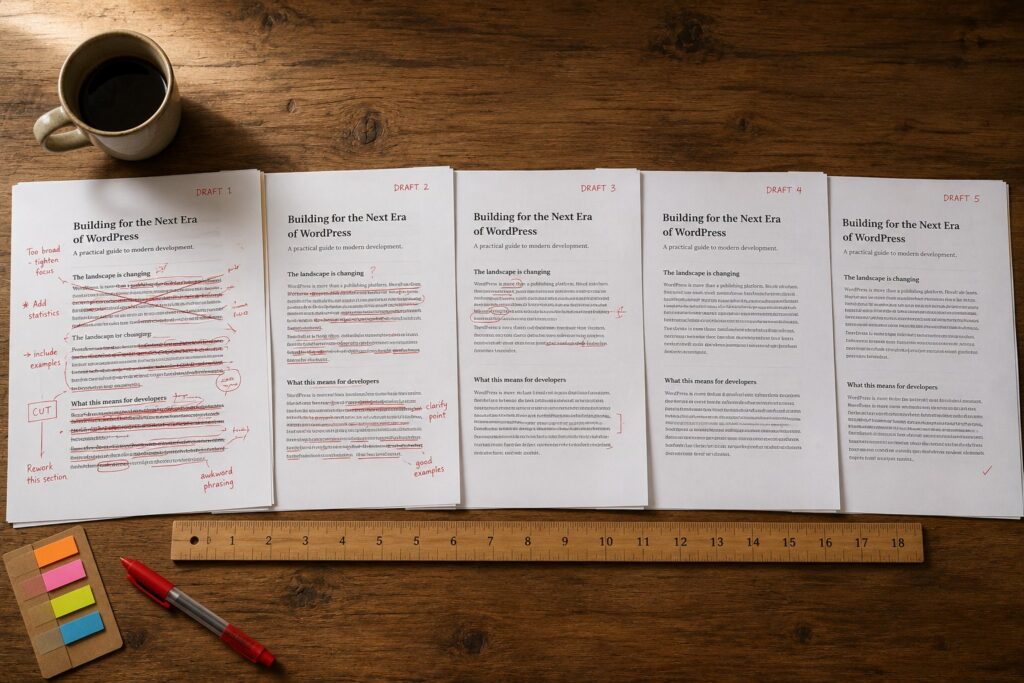
The WordPress revisions system has been a quietly essential feature since WordPress 2.6 in 2008. Every post change creates a revision; revisions can be compared and restored; the system has saved more deadlines than anyone wants to count. The interface, on the other hand, has not changed substantially in over a decade. The classic two-pane revisions screen with its inline text diffs has been functional but visually punishing. It works for editors who have learned its conventions. It is alienating for editors who have not.
WordPress 7.0 ships a redesigned revisions interface called the Visual Revisions Timeline. The redesign is more than cosmetic. The timeline view replaces the chronological list with a horizontal timeline of revision cards. The text-diff view is augmented with rendered previews so editors can see what each revision looked like as a page, not only as text. The whole-post restoration model is augmented with per-block restoration so editors can pull a specific block from one revision into the current version without rolling back everything else. The pattern-as-component model introduced elsewhere in WP 7.0 has its own revision tracking, so synchronized patterns appear in their own timeline.
This piece walks through what the new interface does, the workflows it enables, and the practical changes for editors who have built routines around the old revisions screen. The redesign is one of those updates that is small in the file count of changed code and large in the day-to-day editorial experience.
The timeline view
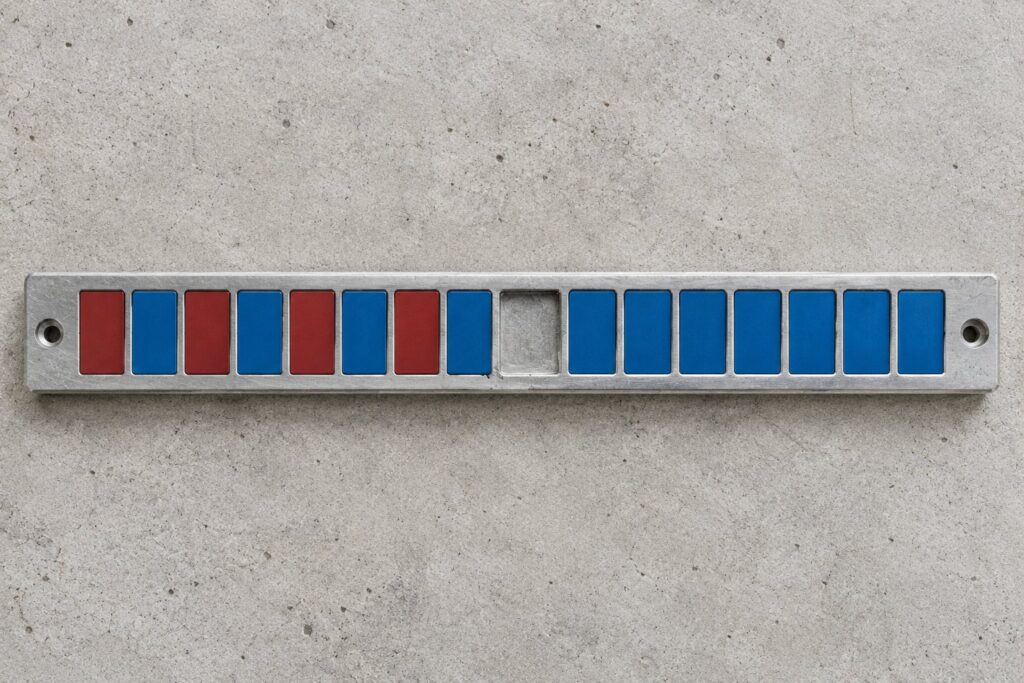
The new revisions screen opens with a horizontal timeline of revision cards. Each card represents one revision and shows the revision’s author, timestamp, and a short auto-generated summary of what changed. The cards are arranged chronologically left to right with the current version on the right. The timeline supports scrolling for posts with many revisions and grouping for posts with revisions clustered in time.
The auto-generated summaries are the largest single quality-of-life improvement. The previous revisions screen labeled each revision with only the author and the timestamp. To find out what changed, the editor had to compare the revision to its predecessor. The new summaries describe the change in human terms: "Added a heading and two paragraphs in the introduction," "Updated the price field in the product table," "Replaced the hero image and adjusted the call to action." The summaries are generated server-side at the time of the revision and stored as part of the revision metadata. They are written in the site’s primary language.
The summary generation uses a small AI model for the natural-language description. The model is invoked through the WordPress 7.0 AI Foundations Connectors API and uses whatever AI provider the site has configured. Sites that have not configured an AI provider, or that have explicitly disabled the summary generation, see only the author and timestamp on each card, which is equivalent to the old behavior.
Each card supports a click-to-expand that opens a detail view for the revision. The detail view has three panes: a visual preview of the post as it would render at that revision, a text-diff against the previous revision (the familiar view from the old interface), and a "what changed" structured breakdown of which blocks were added, modified, or removed. The three panes can be viewed individually or compared side by side.
Visual previews
The visual preview pane is the second-largest quality-of-life improvement. The pane renders the revision as it would have appeared on the front end, using the site’s current theme. Editors can scroll, zoom, and (for posts with conditional content) toggle between viewport sizes. The preview is generated on-demand from the revision’s block markup and rendered through the standard front-end pipeline with a sandbox flag that prevents any side effects.
The practical value of the preview pane is that it lets editors evaluate a revision visually rather than by reading the diff. For text-heavy posts the difference is modest. For posts with substantial visual structure (landing pages, product pages, hero-driven announcements), the difference is large. An editor who can see that a revision had a different hero image can make the decision to restore or not without parsing the underlying markup.
The preview pane has a single limitation worth being explicit about: it renders against the current theme, not the theme that was active at the time of the revision. A revision from a previous theme will render with the current theme’s styles applied to the revision’s content. For most cases this is the right behavior (the editor is reasoning about what content to restore, not about how the old theme looked) but for sites that have undergone significant theme changes the preview can be misleading. The pane includes a small disclaimer when it detects that the active theme has changed since the revision.
Per-block restoration
The old revisions system supported only whole-post restoration. If an editor wanted to recover a specific paragraph from an older revision while keeping the rest of the current revision intact, the workflow was to view the old revision, manually copy the paragraph text, return to the current revision, and paste it in. For complex restorations this was an error-prone process.
The new system supports per-block restoration. In the detail view’s structured breakdown pane, each block in the revision has a "Restore this block" action. Selecting the action copies that block from the revision into the current revision at its corresponding location. Multiple blocks can be selected for batch restoration. The action does not require the editor to leave the revisions screen.
The corresponding-location logic is where the design gets interesting. If the current revision has a block in the same position as the revision the editor is restoring from, the per-block restore replaces it. If the position has shifted (the current revision has new blocks before or after), the per-block restore is inserted at the equivalent semantic position. The editor sees the change and can adjust if the automatic placement is wrong.
A practical pattern that the per-block restoration enables is "surgical recovery." An editor who has been working on a long-running revision realizes that they regret one specific change made an hour ago. With the old system, the choice was to either keep working with the regretted change or to roll back the entire hour of work. With the new system, the editor can find the revision before the regretted change, restore the affected block from it, and continue with the rest of their hour’s work intact.
A second practical pattern is "cherry-picking from a sibling revision." A site with multiple editors working on a draft can see that one editor’s changes to the introduction are good while their changes to the conclusion are not. Per-block restoration lets a third editor pull in only the introduction changes without dealing with the conclusion changes.
Filtering and search
The timeline supports filtering by author, date range, and change type. The author filter is useful for posts with multiple contributors when the editor is looking for a specific editor’s contributions. The date range filter is useful for finding revisions around a specific event. The change type filter exposes the structured breakdown: "show me only revisions that added blocks," "show me only revisions that changed the title," "show me only revisions that modified the featured image."
The search affordance lets the editor search across revision summaries for specific terms. This works because the summaries are stored as text alongside the revision metadata. An editor looking for "when did we change the pricing on this page" can search "price" or "pricing" and the timeline filters to revisions whose summaries mention those terms.
The filtering and search work together. An editor can combine "show me revisions by Jane between June 1 and June 30 that mention pricing" and get a small filtered set rather than scrolling through every revision. For posts with hundreds of revisions accumulated over years, this is the difference between the revisions screen being useful and being unusable.
Pattern revisions
The pattern-as-component model in WordPress 7.0 introduces synchronized patterns that have their own identity independent of the posts that embed them. Pattern revisions track changes to the pattern source, not to embedding posts. The Visual Revisions Timeline handles this with a separate pattern-revisions surface accessible from the pattern editor.
The pattern-revisions surface looks identical to the post-revisions surface (same timeline view, same visual previews, same per-block restoration) but operates on the pattern as the unit of revision. An editor working on a pattern source sees the pattern’s own revision history. The history shows when the pattern was created, who has edited it, what each edit changed, and (for patterns shipped with a theme) which theme version each change came with.
The interaction with post revisions is that when a pattern is updated and propagated to an embedding post, the propagation creates a new post revision. The post’s revision summary describes the propagation: "Pattern ‘hero-block’ updated from source." The editor can see in the post’s timeline when patterns affecting the post were updated, and they can roll back to a pre-update revision if needed without disturbing the pattern source.
Performance
The revisions UI is fast in a way that the old one was not. Loading the revisions screen for a post with 100 revisions takes well under a second on a typical site. The old screen, depending on the post complexity and the host, could take several seconds for posts with similar revision counts.
The performance comes from two sources. The first is that the timeline view loads revision metadata only, deferring the block content until the user clicks into a specific revision. The old interface loaded the full block content of every revision upfront. The second is that visual previews are rendered on-demand rather than pre-generated, which means the initial screen has no preview rendering cost.
The on-demand preview rendering can produce a small delay when the user clicks into a revision (typically 200-500 milliseconds for a typical post; up to a second for posts with many blocks). This is fast enough to feel responsive but slow enough to be noticeable. The trade-off is that the screen load is fast and the preview cost is paid only for revisions the user actually inspects.
Storage implications
Revisions have been a meaningful storage cost for high-volume editorial sites. The new system does not change the storage cost of revisions themselves, but it adds two small overheads. The first is the auto-generated summary text, which is a few hundred bytes per revision. The second is the structured "what changed" breakdown, which is approximately the same size. For a site with millions of revisions, the additional storage is in the gigabytes; for a typical site it is negligible.
Sites concerned about revision storage have two mitigations. The first is the WP_POST_REVISIONS constant, which has been available since WordPress 2.6 and limits the number of revisions retained per post. The constant continues to work in WordPress 7.0 with the additional behavior that the auto-generated summaries and structured breakdowns are removed alongside the revisions they describe.
The second mitigation is the new wp_revisions_max_age filter that ships in WordPress 7.0 and lets a site declare that revisions older than a specified age should be cleaned up automatically. The default is no age-based cleanup. Sites that enable it (typically 90 days or 365 days for high-volume sites) see meaningful storage reduction over time.
Backwards compatibility and migration
The Visual Revisions Timeline replaces the old revisions screen entirely. There is no toggle to revert to the old interface. The decision was deliberate: the team chose a hard cutover to avoid the maintenance cost of supporting two interfaces and to ensure the new patterns become the universal expectation.
For sites with existing revisions (every WordPress site upgrading from 6.x), the new interface works with the existing revision data. The auto-generated summaries are generated retroactively for old revisions on first access to the post’s revisions screen, which produces a brief one-time delay when the editor opens revisions on a post for the first time after the upgrade. The structured breakdowns are similarly generated retroactively. The visual previews work for old revisions to the extent that the revision’s block markup is still parseable, which is the case for any revision created with the block editor.
Sites with revisions from the classic editor (pre-WordPress 5.0) have a different experience. Classic editor revisions store HTML rather than block markup, so the structured breakdown is not available and the visual preview works only by rendering the HTML directly. The timeline view still works for these revisions but with reduced fidelity. For most sites this affects only old revisions and is acceptable as a degradation.
Third-party plugins that interact with the revisions UI through hooks may need to update. The new screen uses different markup than the old one, so plugins that injected custom UI elements into specific positions in the old DOM may not place their elements correctly in the new DOM. The hooks for adding panels to the revisions screen have been preserved, but the layout primitives have changed. Plugin authors should test their integrations against the new interface.
What this enables
The cumulative effect of the redesign is that revisions become a tool editors reach for regularly rather than a tool they reach for only in emergencies. The visual previews lower the cognitive cost of evaluating a revision. The per-block restoration lowers the operational cost of recovering specific changes. The filtering and search make the revisions screen useful even for posts with extensive history.
A second-order effect is that editorial workflows that depend on review and revision become more practical. A site that has draft posts go through editorial review can use the revisions timeline as the surface for review: an editor reviews the timeline, restores specific changes that should be kept, and discards others. The workflow does not require external tools or process discipline; the platform provides the affordance.
A third-order effect is that the cost of experimentation in editing goes down. An editor who is uncertain about a change can make it and roll back specifically the change if it does not work, without losing other work. This is a different relationship with revisions than the old "rollback as nuclear option" model.
Frequently asked questions
Does the new interface work with custom post types?
Yes. The Visual Revisions Timeline is the revisions interface for all post types that have revisions enabled. Custom post types defined by plugins inherit the new interface automatically.
Can I see who made each change at the block level rather than only the post level?
The author of a revision is tracked at the post level (the editor who saved the revision). The author of a specific block change cannot be attributed below the revision granularity. If two authors contributed to the same revision (the rare case where two editors collaborated on a save), the attribution shows only the editor who triggered the save.
Does the auto-generated summary cost AI tokens?
Yes. Each summary generation consumes a small number of tokens through the configured Connectors API provider. Sites concerned about token costs can disable summary generation in the site’s AI Foundations settings, which falls the interface back to author-and-timestamp labels.
Are summaries generated for revisions in languages other than the site’s primary language?
Yes. The summary generation uses the post’s language metadata to determine the output language. Multilingual sites have summaries generated in each post’s correct language.
Can I export the revision timeline as part of a content audit?
Yes. The new screen has an export action that produces a CSV with one row per revision: timestamp, author, summary, and a deep link to the detail view. Sites doing periodic content audits can use this for offline analysis.
Does the per-block restoration work across post types?
No. Per-block restoration is scoped to revisions of the same post. Copying a block from one post to another is a separate operation that uses the standard block-copy paste path.
Are there any keyboard shortcuts for the new interface?
Yes. Arrow keys navigate between revision cards on the timeline. Enter opens the focused revision’s detail view. Escape closes the detail view back to the timeline. A “?” key opens an in-screen help overlay listing all available shortcuts.
Does the visual preview pane include images and other media correctly?
Yes. The preview renders through the front-end pipeline and includes all media assets the revision references. Sites with media stored externally (offloaded to S3, CloudFront, or a CDN) have the previews load through the same paths the live site uses.
What happens to old revisions of a post if I delete the post?
They are deleted with the post, as in the old system. The Visual Revisions Timeline does not change the lifecycle of revisions relative to their parent posts.